Adding a bank account
To add a new bank account proceed as follows:
- Click the Bank account link on the Navigation bar.

The Bank Account List screen is displayed:
- Click the New Bank Account button.

The Bank Account Detail screen is displayed.
Read the information in the Eligible supporting documents section. - Click the arrow on the right of the Choose country field and select the country from the drop-down list. The screen expands to show other fields, depending on the country chosen.
- Complete the fields. An example is shown below:
Note: The maximum number of characters allowed for the Account Name field is 40. If this maximum number is exceeded, an error may occur.
 Warning: When entering your contact details, you must follow attentively, the official postal code for the relevant country.
More specifically, for Swedish and Greek postal codes, experts should use the official format: "XXX XX".
It is advisable to first search using Bank Name and BIC/SWIFT under the Bank Search Criteria. If the result list is too large, you can refine your search by adding Town/City and, as a last option, the Branch name or address.
 Please note that:
- Depending on the country of the bank account, some additional compulsory fields will have to be completed (SWIFT/BIC, address of the bank branch, etc.).
- The system will automatically check if your IBAN/Bank account number already exists in our financial database. If it is the case, the system will retrieve the information and you will not be required to submit your request.
- By default, your personal data will be used to automatically fill in the Account Name, Account Holder, and Account Holder's Address for your newly added bank account. You can edit this information as needed.
- The account holder refers to the owner of the account. As a general rule, only bank accounts in your own name or shared accounts will be accepted. Exceptions are possible in duly justified cases. Please ensure that all the information on the form corresponds exactly to the information on the bank statement.
- The Account Name is an internal field to help identify the account within the system. It may, however, be the same as the Account Holder.
- The checklist on the top right of the screen shows your progress.
- Should the bank's name not be found in the system whilst searching using the country's local language, please note, the following ways to solve this:
- Use English Translations: If the bank name is not appearing in the system, try searching using its English name.
- Check Online Banking Directories: Websites such as the Swift website, Bank. Codes, or Wise offer comprehensive directories of global banks and help retrieve relevant details of banks.
- Search Using the BIC/SWIFT Code: BIC (Bank Identifier Code) or SWIFT codes are unique identifiers for banks globally. Searching these codes on online Banking Directories can help you find the English name.
- Click the Save button. To activate the Upload Bank Statement it is necessary to click the down arrow to the right of the section entitled.
This section will become available once you save the basic initial account information, otherwise it will remain hidden.
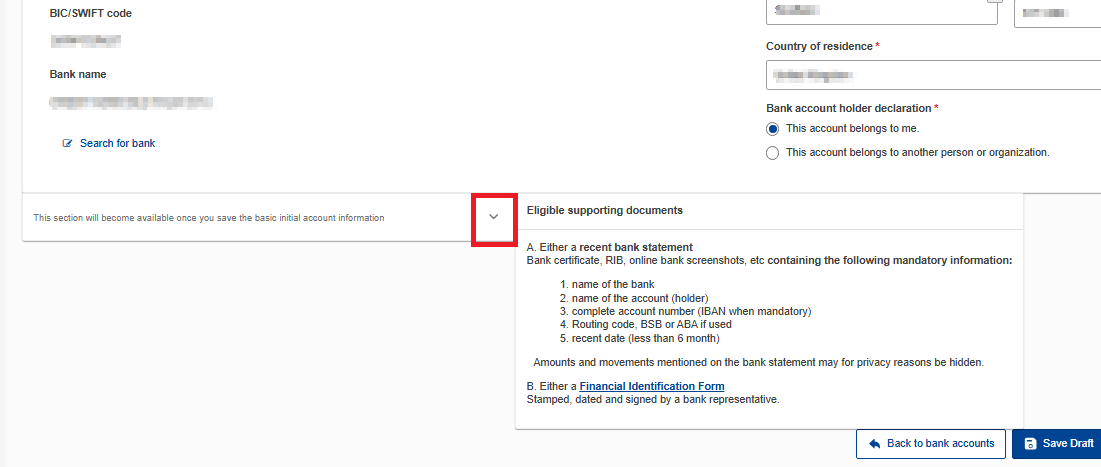

- You are prompted to upload your bank document (check the Eligible supporting documents section).
- Upload a scan of your bank document by dropping the file in the drop box, or by clicking the drop box and navigating to the file.
Note: The file must be in PDF format and less than 10MB.

- The file appears in the Supporting Documents section:

TIP
To delete the uploaded file, click the trash can.
- Click the Save Then click the Submit button.
The Submit confirmation box appears.
- Click the Yes button to confirm. An information message is displayed indicating that the bank account has been submitted

You will be informed soon either that your bank account has been validated or that the internal validation services need additional information. You will not be able to submit your bank account if your personal data has not been submitted first. The BA checklist will have a blocking red cross if the Personal data (the LE) has not yet been submitted.
Warning: Once a bank account has been validated, the personal details cannot be changed or edited.
Notifications asking to submit your bank details
When you have been selected as an expert, you will receive an email asking you to submit your bank account information:
- You need to fill in this section and submit it before a contract can be prepared.
- If you already worked as an expert for the EU, you will still receive the invitation to submit your bank account data, please review and submit a new bank account if needed, or ignore the email if you already submitted or have a validated bank account in the system.
- Even if you submitted the bank account details, or if you already have a bank account validated, two reminders will follow asking you to complete your bank account details. Please ignore them if not applicable.
Please remember that all notifications, apart from being sent to your registered email address, are available on the Portal. If you receive such an invitation asking you to fill in your bank account details, and you have any kind of suspicion about the integrity of the email, please log in to the Portal and check for the same message on the notifications within the Content Centre section on the left. See Notifications for more details.
Deleting a bank account
Warning pop up when you try to delete your bank account
If you only have one bank account, you will get a warning pop up message when you try to delete it.

Deleting a draft bank account
To delete a draft bank account, proceed as follows:
- Click the Bank account link on the Navigation bar.
- Click the trashcan in the box of the bank account you want to delete.

The confirmation message appears:

- Click the Yes button to confirm.
Remove a validated bank account from your profile
To remove a validated bank account from your profile, proceed as follows:
- Click the Bank account link on the Navigation bar.
- Click the trash can in the box of the bank account you want to delete.

A confirmation message appears:
- Click the Yes button to confirm.